
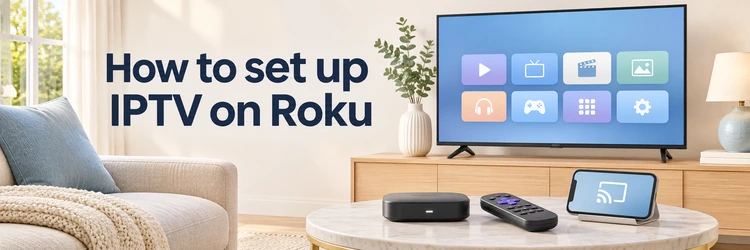
To set up IPTV on Roku, first check whether your TV service has an app in Roku’s Streaming Store. If it does, install that app and sign in with your legitimate subscription. If it does not, a compatible Android phone or Windows computer can mirror its screen to Roku; an iPhone, iPad, or Mac can use AirPlay on supported Roku models. These routes differ, so a phone app that plays video may not send it to Roku.
I checked Roku’s current setup instructions for each route and put the direct app method first because it leaves playback on the Roku device. This guide shows what to check before paying for a service, how to connect each device, and what to do when the TV stays blank. Use only services and streams you are authorized to watch in your location.
Before You Start: Check the Device and Service
Connect Roku and the sending device to the same network. Open Settings → System → About to note the Roku model and software version. If it has been offline, use Settings → System → Software update → Check now, as Roku recommends. My first check is the service’s setup page for a named Roku app or mirroring method. A subscription does not install a player, and Roku’s home screen cannot accept an M3U link or Xtream Codes login.
| What you have | Use this route | Check first |
|---|---|---|
| A service with its own Roku app | Install from Roku’s Streaming Store | App appears for your Roku account and region |
| Compatible Android phone or Windows PC | Screen mirroring | Both devices support wireless display |
| iPhone, iPad, or Mac | Apple AirPlay | Your Roku model supports AirPlay 2 |
1. Choose a Roku Viewing Route
Start with the service’s official device instructions, then search for its exact app name on Roku. If an app appears, confirm that it is the intended service before selecting Add app. I would also check its supported login method: a generic “IPTV player” result does not prove that it accepts your provider’s credentials.
- Roku app: Use the service’s own Store listing when available; Roku says some apps require a separate subscription or purchase. Check availability for your account region before subscribing.
- Android or Windows: Use screen mirroring only when both the sender and Roku support it.
- Apple device: Use AirPlay on a compatible Roku model. Ordinary casting is different and requires a matching supported app on both devices, as Roku explains.
2. Install a Supported App Directly on Roku
Press Home on the Roku remote, open the Streaming Store (called Store → Apps on some interfaces), and search for your television service by its exact name. Open the listing, read the developer and subscription information, then select Add app if it is the correct app. Launch it from the home screen and follow the service’s official sign-in or activation instructions.
I would complete a short playback check before relying on the setup: open a channel or program included in your plan, check sound and captions, then restart the app to confirm the login persists. Do not enter provider credentials into an unrelated app solely because its title contains “IPTV.” If an app added from Roku’s website does not appear, Roku says Settings → System → Software update → Check now can prompt the installation. See Roku’s app-install instructions for the current menus.
3. Mirror from Android or Windows When There Is No Roku App
Screen mirroring displays the sender’s entire screen on the television, so keep the phone or computer awake and control playback there. On Roku, check Settings → System → Screen mirroring and keep the mode set to prompt for connection requests. After the sender requests the connection, select Allow on the Roku screen for that session. I prefer the one-session choice on a shared network because “Always allow” saves the device for later requests.
Open the authorized TV app on the sender only after the mirror appears, then test a short program. Some video apps may restrict mirroring, and a working connection does not guarantee that every stream will display reliably. Roku documents the connection flow and model exceptions in its screen-mirroring guide.
Android: Use the Phone’s Mirroring Control
On a compatible Android phone, swipe down to Quick Settings and look for a control such as Smart View or Screen mirroring. Samsung’s documented path uses Smart View: choose the Roku device, then approve the request on the TV.
My compatibility check would start with the phone maker’s instructions because menu names and wireless-display support vary. Roku notes that Google-branded phones such as Pixel can be exceptions to its Android mirroring path. If your phone only offers Google Cast, do not assume it can mirror directly to Roku; use a supported app or another device route.
Windows: Connect to a Wireless Display
On Windows 11, press Win + K, select the Roku from the wireless-display list, and approve the request on the TV. On Windows 10, Roku documents the Action center → Connect route. Keep the computer and Roku on the same network and open your authorized viewing app after the desktop appears.
I would first test a normal window before testing video; that separates a connection problem from an app playback restriction. If Roku is absent from the list, check that the PC supports wireless display and use the Windows device maker’s help for driver or hardware questions.
4. Use AirPlay with an iPhone, iPad, or Mac
On a supported Roku model, open Settings → Apple AirPlay and HomeKit and make sure AirPlay is on. Connect the Apple device and Roku to the same Wi-Fi network. In an app that supports AirPlay, use its AirPlay control and choose the Roku; for full-screen mirroring, use the Apple device’s Screen Mirroring control. Follow any code shown on the TV.
I would check the model number at Settings → System → About against Roku’s AirPlay compatibility chart before treating a missing AirPlay menu as a fault. The chart also lists minimum Roku OS versions for many older models. AirPlay support does not guarantee that a particular video app permits its content to be sent to a TV; use the app’s own support guidance if playback remains blocked.
5. Confirm Playback and Keep the Setup Secure
Once the picture appears, test a channel or program you are entitled to view, then check audio and subtitles. I would verify one live stream and one on-demand item only if both are included in the subscription. Repeat the check after restarting the app. A working menu alone does not prove that playback is ready.
- Controls: Check whether the Roku remote or the sending device runs playback; mirroring keeps the phone or computer involved.
- Black video: If the phone interface appears but video does not, check the app’s external-display policy before changing Roku settings.
- Account safety: Keep credentials private, install through Roku’s Store, and use the service’s official activation page. Read how IPTV works and how rights affect IPTV legality for context.
IPTV on Roku Not Working? Diagnose the Failing Step
Change only one thing at a time. First, confirm that Roku itself can open a known working app and that the sender is connected to the same home network. Next, identify whether the problem is app availability, device discovery, the connection prompt, or the video inside an established connection.
My troubleshooting order follows Roku’s distinction between casting, mirroring, and AirPlay, because a fix for one route may do nothing for another. Check the Roku model and update status before resetting anything. If a service’s own app fails after sign-in, ask that service about account entitlement and device support; Roku cannot validate a third-party subscription.
| Symptom | Likely check | Next action |
|---|---|---|
| App absent from Store | Region or device availability | Check the service’s official Roku listing; use a supported alternate route |
| Roku absent on phone or PC | Same network and model compatibility | Reconnect both devices; check Roku Settings → System → About |
| Connection prompt never appears | Screen-mirroring mode or AirPlay setting | Enable the relevant feature and retry one request |
| Menus mirror but video is black | App external-display restrictions | Check the app’s official supported-device guidance |
| Video starts but stalls | Network or service issue | Compare a known working Roku app and the same program on the sender |
If discovery fails, restart Roku and the sender, reconnect both to the same network, and retry. Roku’s guide suggests restarting the router. Avoid a factory reset before identifying the cause. For stalls, see the IPTV buffering guide. If other Roku apps work but this stream fails, contact the service; if several fail, check the network.
Tips for a Smoother Roku Setup
Choose the route that needs the fewest moving parts. I would note the Roku model, service app name, and login method before contacting support; those details help pinpoint the failed step.
- Keep devices ready: Update Roku and use the same home network for wireless sharing.
- Check the service: Ask for a specific Roku listing or supported sharing method before buying a long plan.
- Check rights: Confirm the content is licensed for your country and the service permits your chosen viewing method.
| Viewing route | Best fit | Main dependency |
|---|---|---|
| Direct Roku app | Regular TV viewing | Service app available in your Store |
| Screen mirroring | Compatible Android or Windows device | Sender stays awake during playback |
| AirPlay | Compatible Apple device | Roku model and app allow AirPlay |
Conclusion
How to set up IPTV on Roku depends on your devices: install a legitimate Roku app when available, mirror from compatible Android or Windows hardware, or use AirPlay with a supported Apple and Roku combination. I recommend checking app availability and the Roku model before paying.
Then test playback, sound, and sign-in persistence with content in your plan. If the connection succeeds but video does not, check the app’s external-display rules; if Roku cannot be found, return to network and compatibility checks. Keep viewing within your service’s rights and local rules.
FAQs
Can I install any IPTV player on Roku?
No. An Android or Fire TV installation file does not install through Roku’s Streaming Store. Search Roku’s Store for the exact app and check the service’s official instructions. I would confirm the supported login type before subscribing, since a generic player listing does not prove that it accepts your service’s credentials.
Can I use an M3U link directly on Roku?
Roku’s home screen does not offer a field for an M3U link. A service-specific Roku app may support its own sign-in method, or you can use an authorized app on a compatible phone or computer and mirror or AirPlay its output. My advice is to follow the service’s documented route rather than share a playlist URL with an unknown app.
Why does my phone see a Roku but show a black video screen?
A mirrored phone interface with a black video area can indicate that the app blocks external display, even when the connection itself works. I would test a non-video screen first, then consult the app’s device-support instructions. Also check that you selected the correct sharing method: Roku casting, Android mirroring, and Apple AirPlay have different requirements.
Does Roku support IPTV screen mirroring from every Android phone?
No. Roku says Android screen-mirroring support varies by phone and identifies Google-branded devices as a possible exception. Your Roku model also matters; some older Express models do not support screen mirroring. I recommend checking both model numbers and trying the phone maker’s documented wireless-display control before assuming a provider account is at fault.