
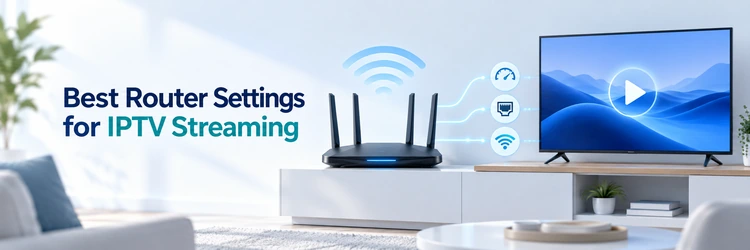
The best router settings for IPTV streaming are the ones that make the local connection predictable without weakening security or applying random “gaming” tweaks. Start with current firmware, WMM enabled, automatic channel selection, and a supported wired connection where practical. Use 20 MHz on 2.4 GHz; leave 5 GHz and 6 GHz widths on Auto unless the router maker says otherwise.
QoS can help when household traffic competes for limited bandwidth, but it cannot repair a failing channel source, an overloaded service, or an internet-provider fault. IGMP options matter mainly when an internet provider delivers managed multicast television. Most app-based streaming uses ordinary internet connections, so multicast changes should not be a default experiment.
I reviewed current Apple, Google, TP-Link, and Cisco guidance for this setup plan. Menu names still vary by router model and firmware. Record the working configuration, change one setting at a time, and compare the same legitimate stream under similar conditions before deciding that an adjustment helped.
Before You Change Router Settings
Save or photograph the current configuration without exposing the administrator password, public IP address, Wi-Fi key, or IPTV credentials. My starting point is a normal restart and a firmware check through the router maker’s official app or local administration page. Do not press a physical Reset button, install unofficial firmware, disable encryption, or open ports as a buffering experiment. Tell other household users before a change interrupts the network, and always keep a way to restore the last working settings.
1. Establish a Wired Baseline and Check the Bottleneck
Connect the playback device to the home router by supported Ethernet when practical, then compare the same channel or programme at a similar time. I treat this as a baseline, not a permanent requirement: a smoother wired result points toward the wireless path but does not identify the router, device radio, interference, or service as the cause.
Check the link speed of every component between the router and player. Google notes that the slowest Ethernet port, switch, or cable can limit the path. If wired playback also fails, use the IPTV buffering checklist before changing radio settings.
| Check | Starting point | Purpose | Limit |
|---|---|---|---|
| Ethernet | Supported wired link | Isolates much of Wi-Fi | Cannot verify the source |
| Firmware | Current official release | Improves stability and security | Check model notes |
| WMM | Enabled | Supports multimedia traffic | No bandwidth guarantee |
| Channel | Auto | Adapts to local radio use | Recheck poor choices |
| QoS | Off for baseline | Keeps the test clear | Cannot repair a feed |
2. Best Router Settings for IPTV Streaming: WMM and QoS
WMM should normally remain enabled on routers that support modern Wi-Fi. Apple warns that disabling it can affect network performance and reliability. My next step is QoS only when playback worsens during competing uploads, downloads, cloud backups, or other streams and improves after that optional activity stops.
Use device priority for the television or streaming box before creating broad custom application rules. Enter realistic total upload and download rates if the router requires them; a badly inflated value can prevent scheduling from working as intended. TP-Link’s current instructions also show that menus and capabilities differ by model.
Apply a temporary priority, replay the same content, and check whether other essential devices remain usable. Remove the rule if it produces no repeatable benefit. Avoid prioritising every device, stacking multiple presets, or assuming that a high-priority label guarantees smooth IPTV when the incoming stream itself is inconsistent.
3. Choose the Wi-Fi Band, Channel, and Width Deliberately
Leave all supported bands enabled and start with automatic channel selection. For 2.4 GHz, use a 20 MHz channel width; for 5 GHz and 6 GHz, Auto or all supported widths is the safer general baseline. I follow those current Apple recommendations instead of forcing the widest channel everywhere, because wider channels can be more vulnerable to interference.
5 GHz or 6 GHz can provide more capacity at shorter range, while 2.4 GHz often reaches farther through obstacles. The room, construction, neighbouring networks, and client hardware decide which works better. Place the router or mesh point in an open position and compare the playback device on each supported band without changing several other settings at the same time.
| Band | Starting point | Useful when | Watch for |
|---|---|---|---|
| 2.4 GHz | Auto, 20 MHz | Range matters | Nearby congestion |
| 5 GHz | Auto width | Player is close | Dense walls |
| 6 GHz | Auto on compatible gear | Both devices support it | Range and compatibility |
| Ethernet | Supported link | Cabling is practical | Slow ports or adapters |
4. Use One DHCP Server and Avoid Accidental Double NAT
In a typical home network, one device should assign local addresses and one edge router should perform NAT. I check whether an internet-provider gateway and a second personal router are both routing, because duplicate DHCP services can cause address conflicts and double NAT can block access to some resources. Neither condition automatically explains video buffering, so do not rebuild the network on suspicion alone.
If a gateway-router combination is intentional and everything works, record it before changing anything. Otherwise, use only the bridge, access-point, or passthrough mode documented by the equipment provider. These modes can interrupt internet, phone, television, or management services when applied incorrectly. Ask the ISP or router maker for model-specific guidance instead of guessing which box should be disabled.
Do not expose the playback device through a DMZ, disable the firewall, or forward ports merely because an app buffers. Ordinary outbound streaming rarely needs those security changes.
5. Change IGMP Settings Only for Managed Multicast IPTV
IGMP snooping and proxy settings control multicast behaviour; they are not universal speed boosts. My rule is to touch them only when the ISP’s television service or router documentation specifically requires multicast. A set-top box supplied for a managed TV service may use that design, while an app that streams over the public internet usually does not need a custom IGMP rule.
If the provider documents IGMP snooping, proxying, or a dedicated IPTV/VLAN profile, copy the exact model-specific values and retain the original configuration. Cisco describes IGMP snooping as a way to constrain multicast traffic on a switched network, not as a general unicast optimisation.
Do not enable immediate-leave, change VLAN IDs, or replace the ISP profile from a generic tutorial. A wrong multicast setting can remove television service from other ports or devices. When the requirement is unclear, leave the defaults and ask the ISP which delivery method the account uses.
6. Keep Security and Firmware Settings Strong
Streaming performance is not a reason to weaken the home network. Enable automatic official firmware updates when the router supports them, use WPA2-AES or WPA3 according to device compatibility, keep the firewall on, and replace the default administrator password. My security baseline also leaves hidden-SSID tricks and MAC filtering out of the performance plan; neither is a substitute for proper encryption.
Disable remote administration unless it is genuinely required and configured according to the manufacturer’s guidance. WPS can simplify enrolment but may not suit a security-conscious household; use the router maker’s current recommendation. Never paste IPTV playlist URLs, portal credentials, or account passwords into a router rule.
After a security change, reconnect one device and test normal browsing before checking IPTV. If an older player cannot join, restore the last known working secure mode and consult its supported Wi-Fi standards instead of dropping the whole network to an unsafe configuration.
7. Treat DNS as a Lookup Choice, Not a Bandwidth Fix
DNS translates service names into network addresses. Changing the router’s DNS server can alter lookup behaviour, filtering, or privacy characteristics, but it does not increase the broadband plan’s capacity or repair a weak Wi-Fi signal. I keep the ISP or trusted configured DNS during performance testing unless a specific name-resolution failure has been established.
If the app cannot resolve a service name while other connections work, compare the router default with a reputable resolver permitted by the network administrator. Record both addresses and restore the previous setting if nothing improves. Do not copy unknown DNS values from a video or forum post, and do not describe a coincidental improvement as proof that the prior resolver caused buffering.
Apple’s current router guidance permits the default or a specified primary and secondary DNS server. That supports a choice, not a universal “fastest DNS” claim. Persistent playback stalls need delivery, Wi-Fi, device, and service checks too.
8. Test One Setting at a Time and Keep Evidence
Use the same playback device, channel, quality, and approximate viewing window for each comparison. I change one router setting, reconnect the player if required, then observe startup, channel changes, and several minutes of playback. A single smooth minute is not enough to declare the configuration fixed, especially when the original problem was intermittent.
Write down the baseline, the exact change, and the result. Restore settings that do not produce a repeatable improvement. If several devices fail across unrelated legitimate apps, check the ISP’s incident information and router connection; if only one channel fails, contact that service rather than redesigning the network.
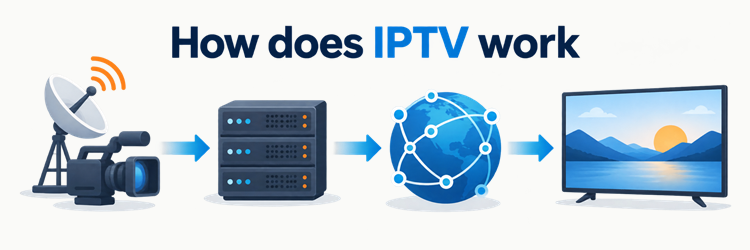
The How IPTV works guide explains why the route includes more than the router. Keep testing local and reversible, and never share screenshots containing network names, public addresses, device identifiers, or subscription credentials in a public forum.
Troubleshooting Router Settings That Still Do Not Fix IPTV
When the recommended baseline does not help, use the failure pattern instead of adding more tweaks. My table separates local clues from service or device clues; each result suggests a next check, not a proven root cause. Test another legitimate app on the same device and another device on the same connection before blaming the router.
| Remaining pattern | Next check | What the result can suggest | What it cannot prove |
|---|---|---|---|
| Wired works; Wi-Fi fails | Placement, band, channel environment, and client radio | The wireless path deserves attention | A defective router |
| Several apps fail on several devices | ISP status, modem/router link, and household demand | A broad connection problem is plausible | Deliberate throttling |
| One IPTV channel fails | Service status and channel-specific support | The failure may be upstream of the home | That every other channel is healthy |
| Problems appear during large uploads | Temporary QoS or smart-queue test | Contention may contribute | That more download speed is the only fix |
| Only one player fails | Supported updates and app settings | A player or device issue is plausible | That the network is perfect |
| ISP set-top service fails after IGMP changes | Restore the documented profile and contact the ISP | The multicast profile may be involved | The correct VLAN or IGMP values |
Stop if the router loses internet access, the admin page becomes unreachable, or managed TV/phone service disappears. Restore the saved configuration or follow official recovery instructions. Do not factory-reset shared equipment until the ISP or manufacturer confirms what credentials and service profiles will be needed afterward.
Best Practices for Stable IPTV Streaming
Keep the configuration simple enough to explain later. My preferred baseline is supported Ethernet where practical, current firmware, WMM on, automatic channel selection, 20 MHz on 2.4 GHz, Auto widths on higher bands, and no unnecessary port or multicast rules.
- Document changes: Keep the date, firmware version, baseline, and result in a private note.
- Protect credentials: Never place playlist, portal, Wi-Fi, or administrator secrets in screenshots or rules.
- Schedule heavy transfers: Move optional backups away from important viewing only when a controlled comparison shows contention.
- Review after updates: Recheck behaviour after router, player, or ISP equipment changes.
- Escalate narrowly: Send the matching provider a redacted symptom record rather than changing unrelated settings.
Final Answer
The best router settings for IPTV streaming start with WMM enabled, current firmware, automatic channel selection, 20 MHz on 2.4 GHz, Auto widths on 5/6 GHz, and a clean single-router DHCP/NAT design. I add QoS only for demonstrated contention and change IGMP only for documented multicast service. Test one reversible adjustment at a time, keep security on, and use the failure pattern to decide whether the router is even the right place to investigate.
FAQs
Should I Enable QoS for IPTV?
Enable it only when a controlled comparison shows that household traffic competes with the stream. My first choice is temporary device priority for the player, using realistic line rates. If playback is unchanged, remove the rule; QoS cannot repair a failing service feed or create missing internet capacity.
Is 2.4 GHz or 5 GHz Better for IPTV?
Neither band wins in every room. I prefer 5 GHz when the player has a strong nearby signal and 2.4 GHz when range is the limiting factor. Compare the same stream on both supported bands, keep 2.4 GHz at 20 MHz, and avoid changing other settings simultaneously.
Should IGMP Snooping Be On or Off for IPTV?
Leave the router default unless the ISP or equipment documentation specifies multicast television requirements. My recommendation is to enable or alter IGMP only with model-specific instructions. Most app-based internet streaming does not gain a general speed benefit from an arbitrary IGMP change, VLAN, or immediate-leave setting.
Will Changing DNS Stop IPTV Buffering?
DNS can affect how service names are resolved, but it does not strengthen Wi-Fi or add bandwidth. I would change it only for a demonstrated lookup problem or a considered privacy choice. Restore the previous resolver if a controlled comparison shows no benefit, and avoid unknown DNS addresses.
Do I Need to Open Router Ports for IPTV?
Ordinary outbound IPTV streaming usually should not require manual port forwarding, DMZ exposure, or a disabled firewall. My default is to keep those protections intact and follow only the service’s official, device-specific documentation. Buffering alone is not evidence that unsolicited inbound traffic must reach the player.